Back Tees Live

Press

App screenshots & store assets.

Full-resolution captures of the Back Tees Live app, taken on device. Right-click any image and save it, or use the download link under each shot.

iPad

iPad Pro 13-inch · 2064 × 2752 portrait · PNG. Matches the App Store Connect 13-inch iPad display slot exactly — no resizing needed.
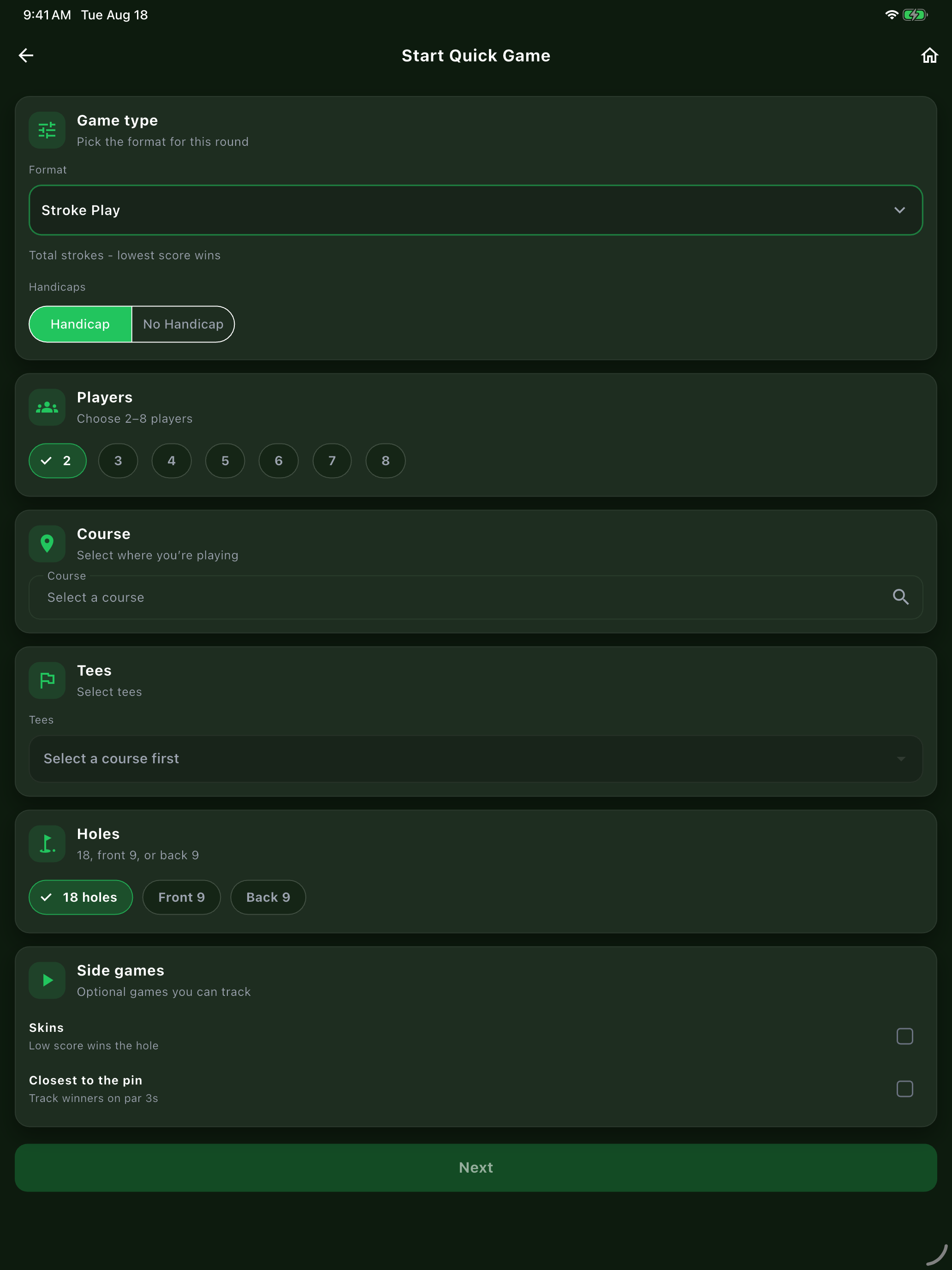
Quick Game setup screen on iPad with format, handicap, players, course and tee selection.
1Create Start a Quick Game or a full event in minutes. Pick the course, the tees and the format. Download PNG
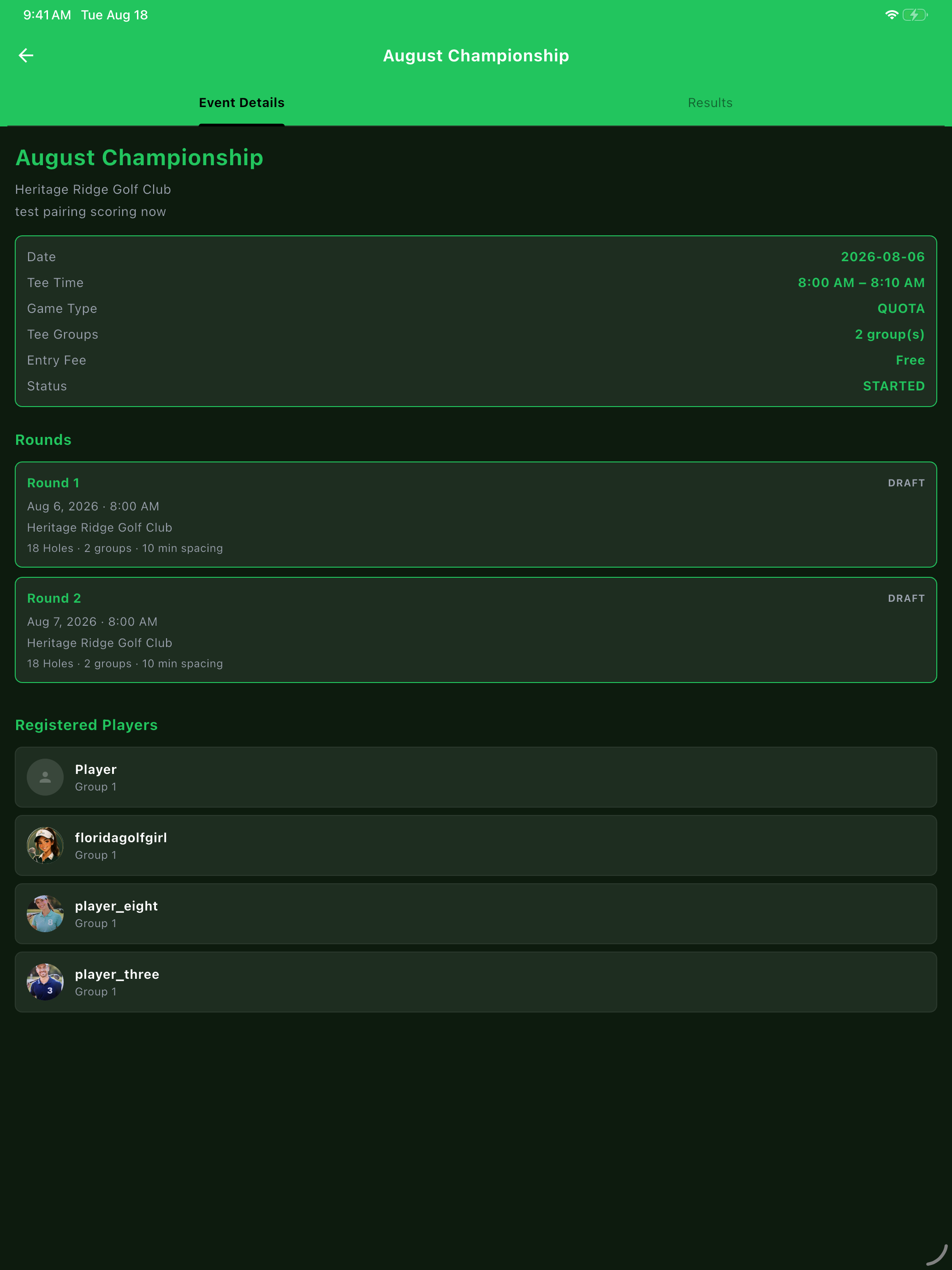
Event detail screen on iPad showing date, tee time, game type, entry fee and the registered field.
2Invite Add players from your friends, or text a contact an invite code straight from your phone. Download PNG
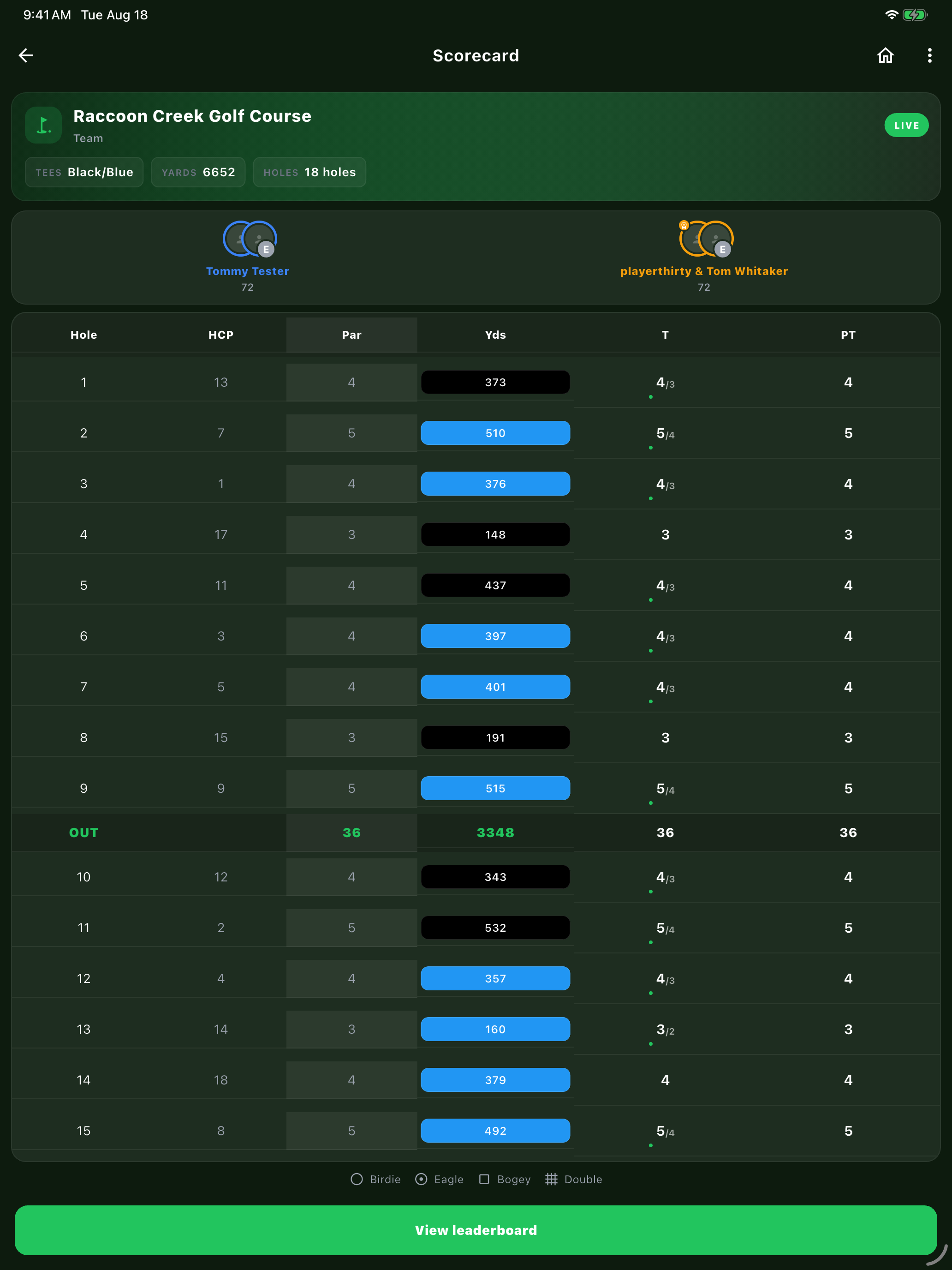
Scorecard screen on iPad showing hole-by-hole score entry for a playing group.
3Play Everyone knows their group, their tee time and where to start. Enter scores from the course. Download PNG
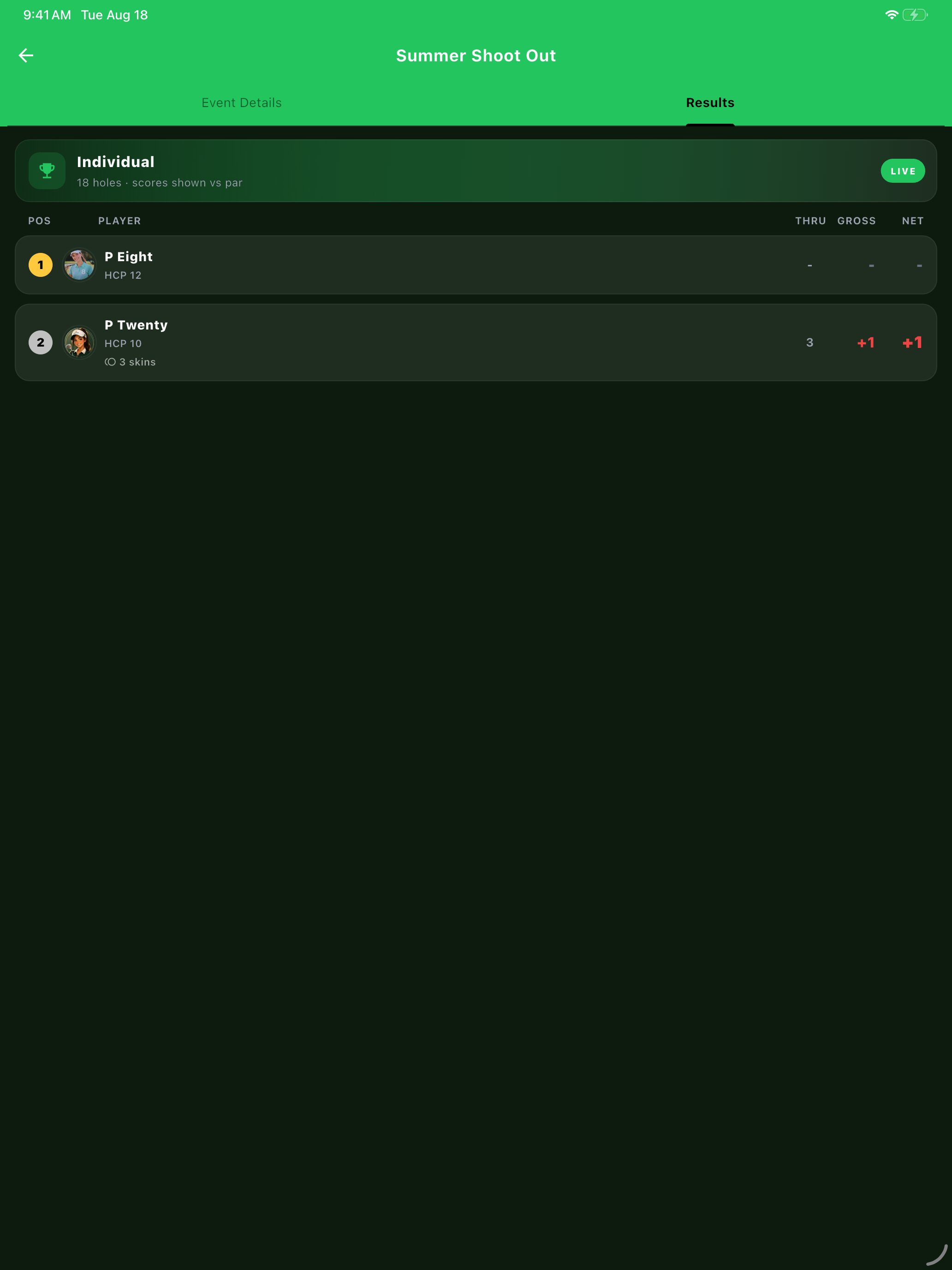
Live leaderboard on iPad with positions, holes completed and gross and net totals.
4Follow Standings update as cards land — plus skins and closest-to-pin alongside the main game. Download PNG
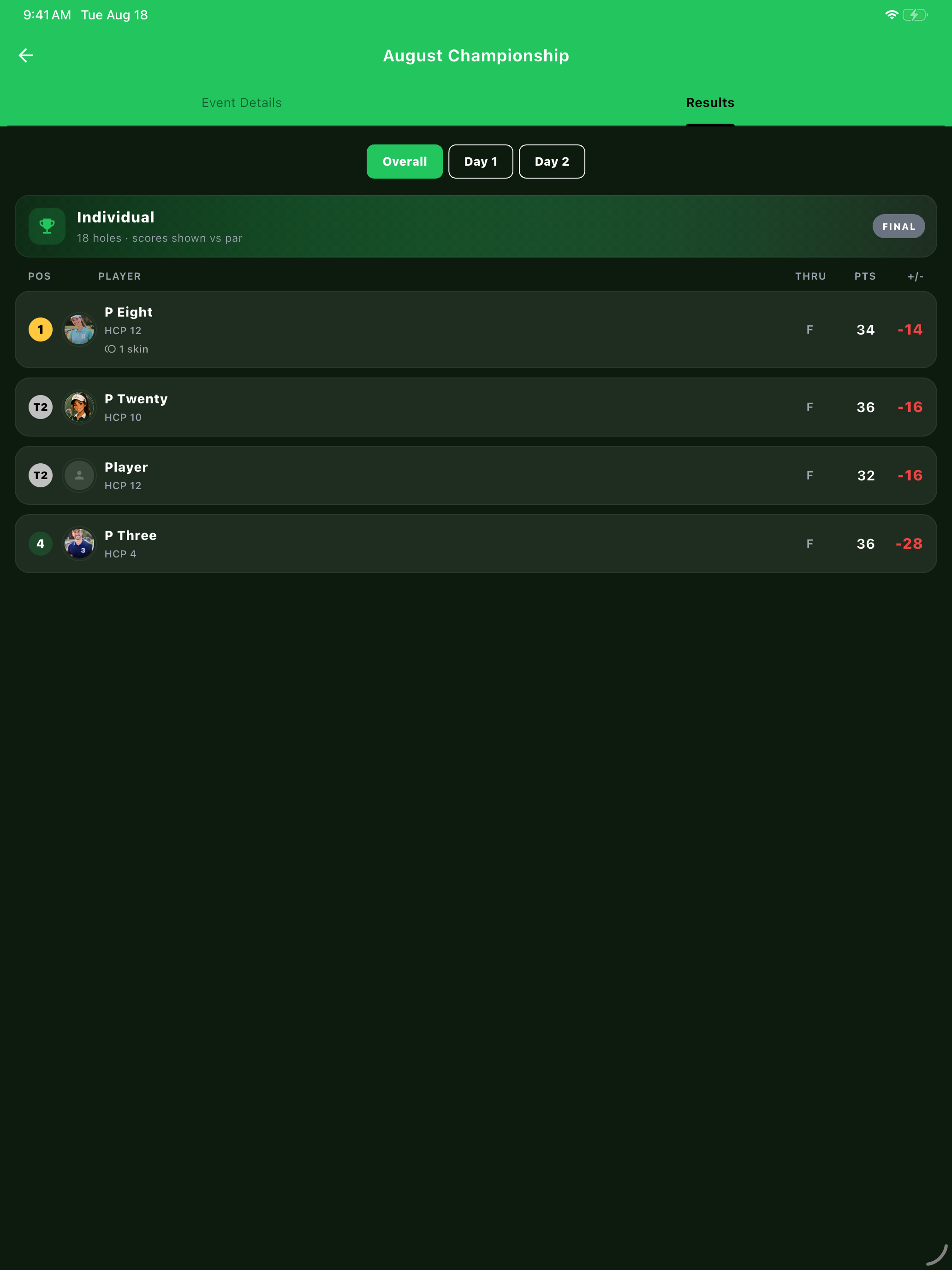
Completed event leaderboard on iPad showing the finished field and final positions.
5Finish Gross and net worked out automatically, then saved to your history. Download PNG

Phone

The same five steps as they appear on iPhone and Android.
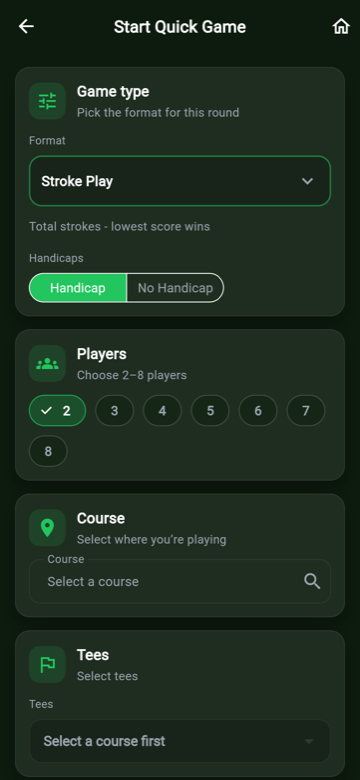
Quick Game setup screen on a phone.
1Create Download PNG
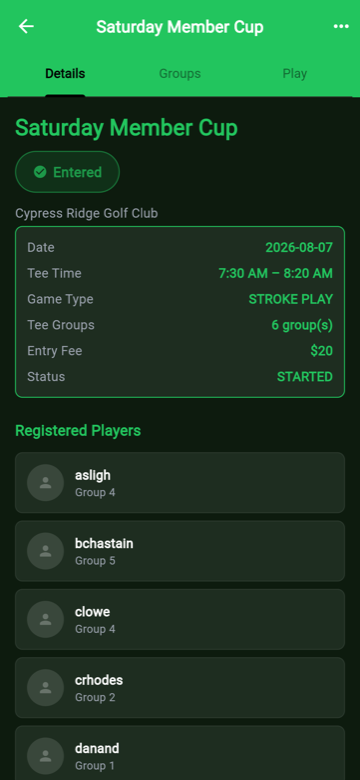
Event detail screen on a phone.
2Invite Download PNG
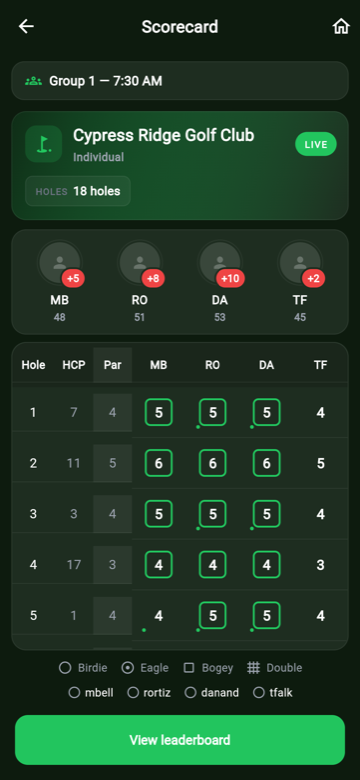
Scorecard screen on a phone.
3Play Download PNG
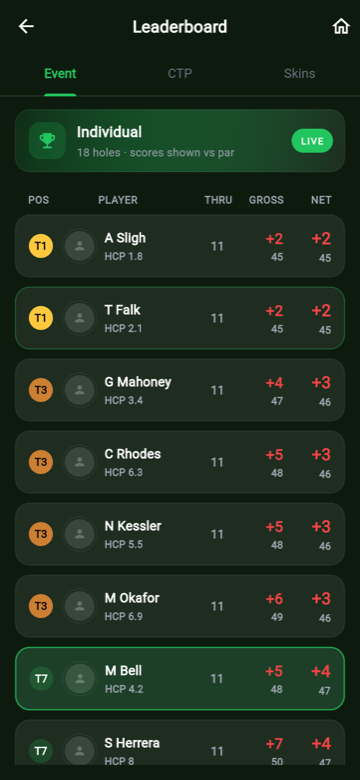
Live leaderboard on a phone.
4Follow Download PNG
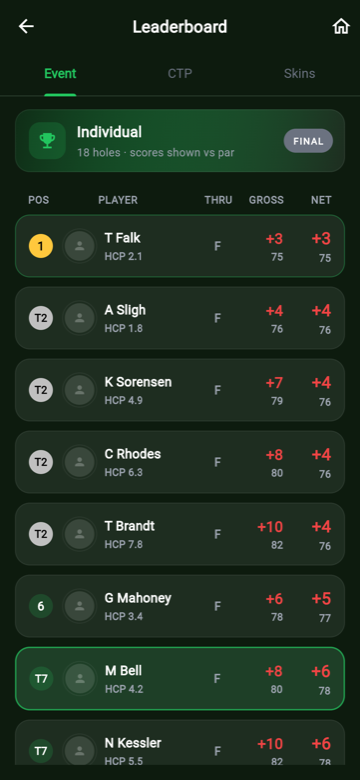
Final leaderboard on a phone.
5Finish Download PNG